ZANUS BACK OFFICE — ORDERS, STOCK & SHIPMENTS
Where is the order, what is in stock,
where is the truck.
Three questions a company answers a hundred times a day, usually by opening three systems. Here orders, inventory and shipments live together: SKU-level stock across locations, purchase and sales orders, carrier tracking with checkpoints on a live map — and the AI watching all of it, flagging the stock about to run out, the shipment that stopped moving and the orders waiting on the same missing part.
Hosted, private or on a unit you own · your rules, your approved sources · live in days, not months
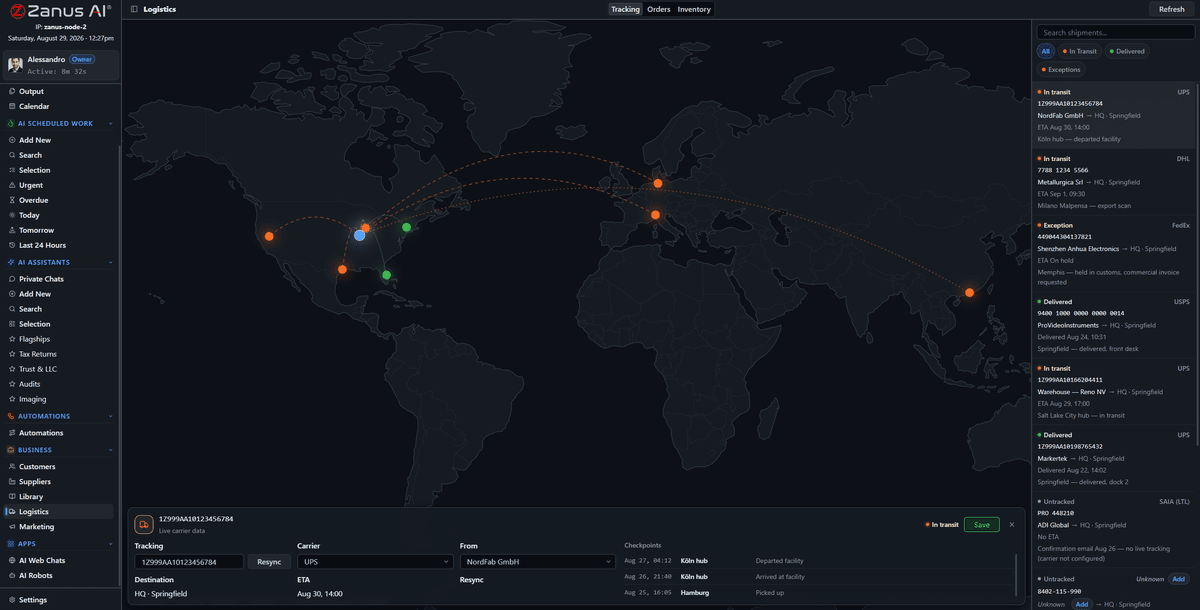
Every shipment on one map with its carrier checkpoints. A stalled one turns into a line in Act Now.
What it does
Sales and purchase orders with lines, status and documents. Created from RFQ awards, from mail, from connected shops and ERPs, or by hand.
SKU-level stock per warehouse and location, barcodes, movements, minimums. The AI proposes the reorder before the shelf is empty.
Carrier tracking with checkpoints, rates, labels and proof of delivery. Customer notices drafted when something changes.
Inside Orders, stock & shipments — the real screens
Click a tab. Every picture is the working Back Office — the left menu is the whole product.
One missing item, four orders
Four orders are waiting; each looks like its own problem. The AI sees they wait on the same SKU, that the supplier’s confirmed delivery slipped in yesterday’s mail, and that two of the four customers have a delivery commitment on the calendar. One warning on the dashboard: what is blocked, why, who to tell — with the customer notices drafted.
- Cross-order and cross-record reasoning
- Supplier mail read against open orders
- Notices drafted, held for a person
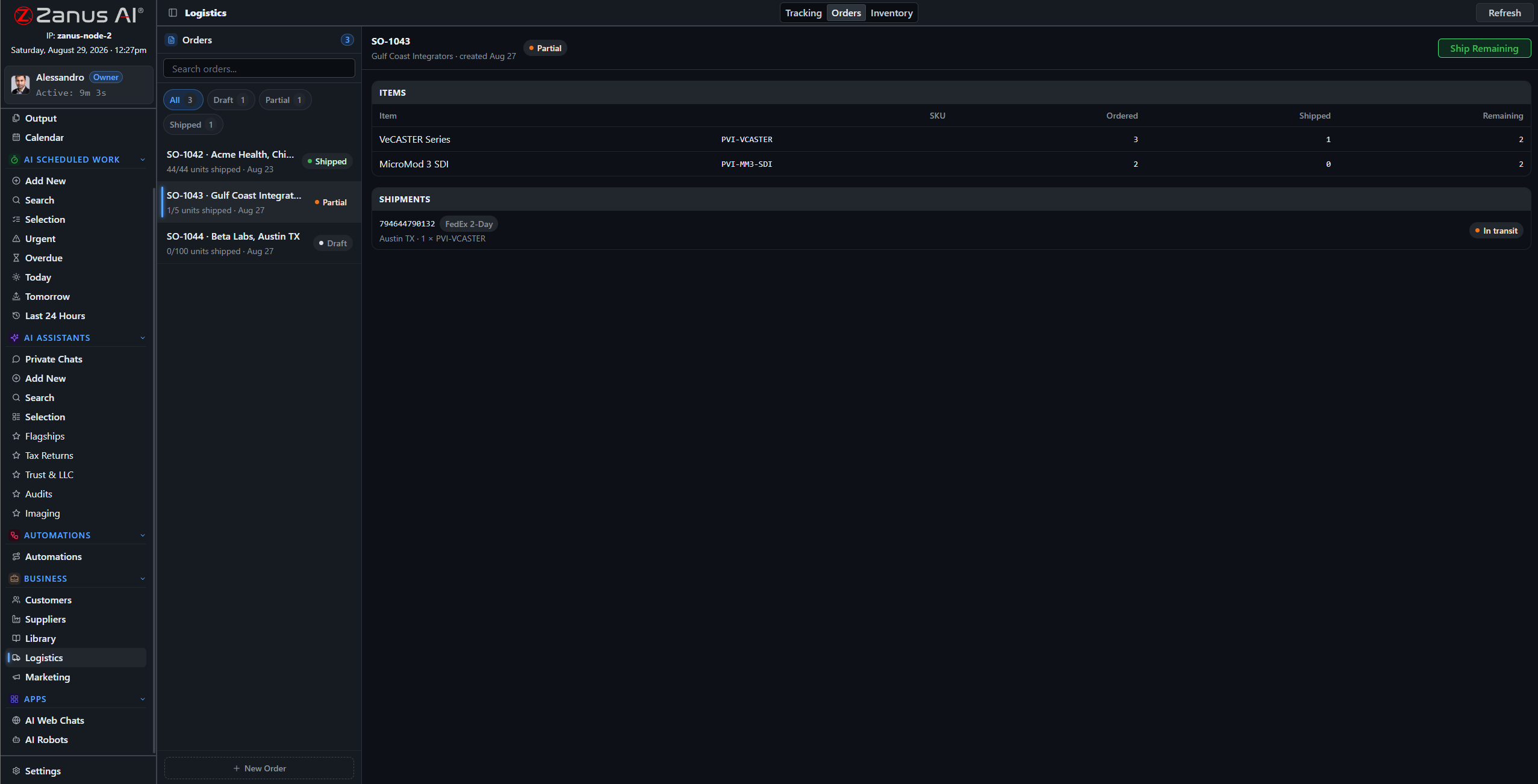
The AI sees across orders: the same missing item blocking four of them is one warning, with the supplier already named.
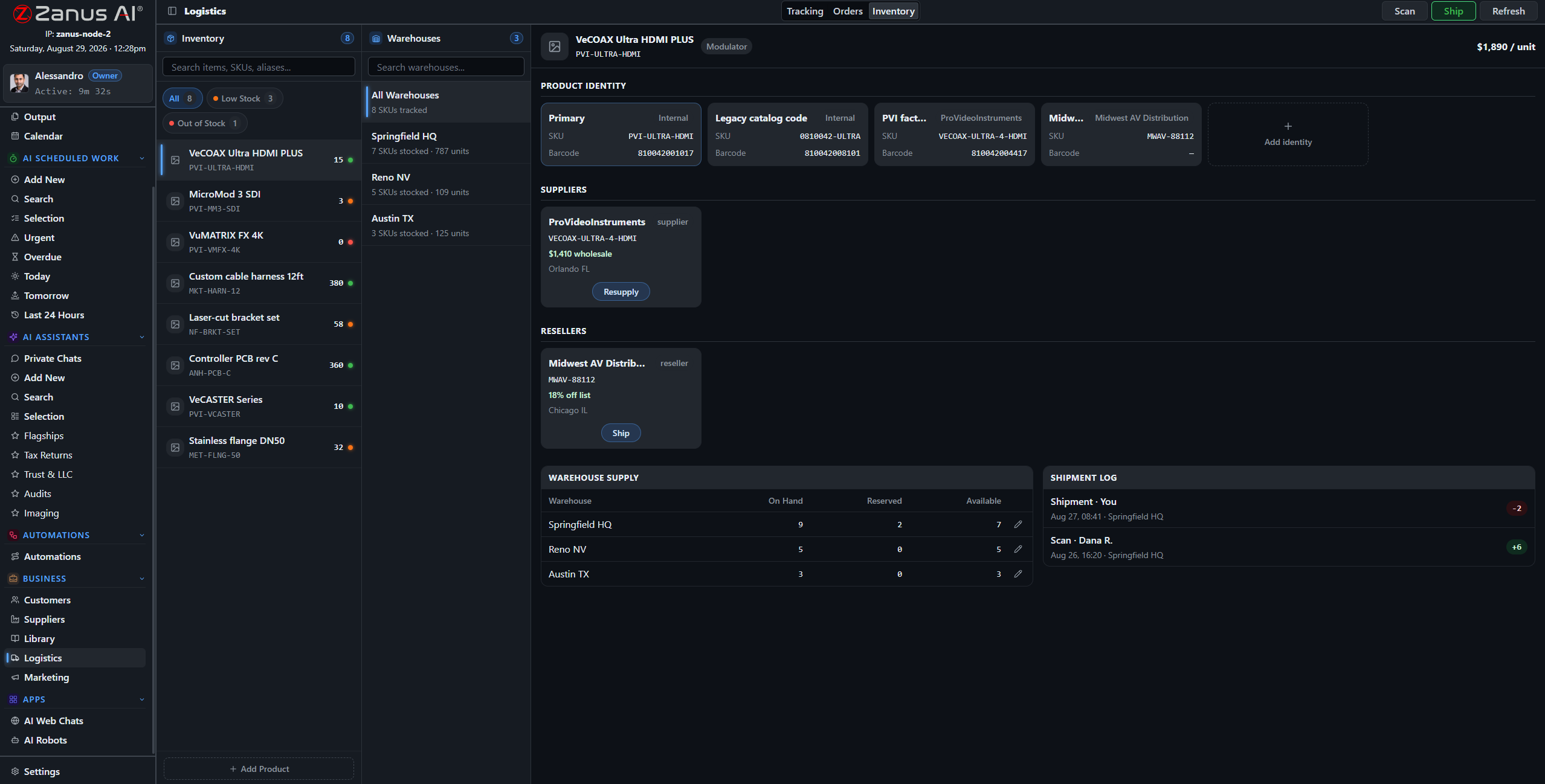
Receipt updates stock; stock updates the reorder logic; the proof of delivery closes the loop on the record.
From award to proof of delivery
An RFQ awarded on Output becomes a purchase order. The confirmation sets the delivery date. Receipt is scanned and stock moves. The sales order ships with a carrier label; the checkpoints show on the map; the proof of delivery files itself on the client record and the invoice date is set. Nobody re-typed a number.
- Purchase orders from RFQ awards
- Barcode receipt and movements
- Carrier rates, labels, checkpoints, proof of delivery
How it runs
Logistics is where the loop acts on the physical world: orders placed, stock moved, shipments booked — each under a rule or a click.
In one working day orders arrive from mail and connected shops, stock moves with the scans, two reorders are proposed and approved, one shipment stalls and its customers are told — and the evening stock report is already on Output.
What’s inside
The functions, named. Every one of them is on the demo.
- Sales and purchase orders with lines, status and documents
- SKU-level inventory across warehouses and locations
- Barcodes, movements, minimums and reorder proposals
- Carrier integrations: rates, labels, tracking checkpoints
- Live tracking map and stalled-shipment warnings
- Proof of delivery filed on the record
- Cross-order warnings for shared missing items
- Connectors to shops and ERPs through the integrations module
Included from AI OPERATIONSReorder proposals and customer notices wait on Output unless you approve the type.Plans →
Questions, answered
We already have an ERP or a shop system.
Keep it. Orders and stock sync through the integrations module; the AI adds the reading, the watching and the drafting on top.
Which carriers?
The carriers with tracking and rate services in your regions, connected through the integrations module with a test button. Ask us about yours.
Can the AI reorder on its own?
It proposes on Output. You can approve each proposal, or allow a type — low-value consumables, for example — to order itself.
See it working on YOUR business — the demo IS the product.
← Previous: Quotes compared · Sharing with a colleague? 📄 Get the PDF · ✉️ Email this page ·